






This website uses cookies so that we can provide you with the best user experience possible. Cookie information is stored in your browser and performs functions such as recognising you when you return to our website and helping our team to understand which sections of the website you find most interesting and useful.
1. Motors


2. Remote Controls


3. Wall Switch

4. Urgent Support

Spanish and English
Monday to Thursday 8:00–15:00
Friday 8:00–14:00 (UTC+2)


Or if you prefer, fill in the support form and we will respond as soon as possible:
5. Frequently Asked Questions (FAQ)
All Abalon remote controls and wall switches are compatible with all Abalon motors (except the 4-wire motor). You simply need to choose the remote control that best suits your needs. All Abalon kits include a 1-channel remote control.
A 1-channel remote control can operate up to 8 motors simultaneously. However, if you install a double track (for example, one for curtains and another for sheers), we recommend using a 2-channel remote control so that you can operate them independently from the same remote. If you want to control more Abalon motors independently using a single remote control, you will need the 16-channel remote control.
Abalon remote controls require 2 AAA batteries, which are not included for transport safety reasons. The remote control does come with a convenient wall-mounted holder. The Abalon wall switch requires one CR2032 button battery.
The Abalon 16-channel remote control allows you to control up to eight tracks per channel, with all tracks assigned to the same channel operating simultaneously. With the 16-channel remote control, you can also set up different scenarios if you have several motorised tracks, allowing each curtain to operate independently.
You can purchase any of the Abalon remote control or wall switch models from our online store.
Remove the battery cover from the remote control. Briefly press the black button on the motor, then press the top button on the back of the remote control (S1). The motor will vibrate to indicate that pairing has been successful.
Abalon tracks can operate with different types of wall switches: single, double or triple switches. Please refer to your motor’s product page in this section for connection instructions. You can also purchase the Abalon BE-602 Wall Controller to operate your curtains without requiring an electrical connection, using radio frequency (RF). It is not compatible with the 4-wire motor.
For the 3-wire motor, the connection is made via an RJ11 connector, without a power supply. The same applies to Zigbee, KNX and Z-Wave motors. For 4-wire and 5-wire motors, a power supply is required. You can find the installation instructions on each motor’s product page.
Briefly press the black button on the motor. Then, using the clip provided, press the black button on the back of the wall switch. The motor will vibrate to indicate that pairing has been successful.
No electrician is required to install an RF wall switch. However, if you are installing a wired switch, we recommend seeking assistance from a qualified professional.
To control your curtains via an app or voice assistant (Google Home or Alexa), you need an Abalon Wi-Fi motor or an Abalon motor compatible with other home automation systems (KNX, Zigbee or Z-Wave). To schedule your Wi-Fi motor and control it by voice, you will need the Tuya or Smart Life app. Please also refer to the video containing the setup instructions. If you are not a qualified professional, we recommend consulting one to integrate your motor into your KNX, Zigbee or Z-Wave home automation system.
We currently do not sell any Abalon motors with direct Apple Home compatibility.
Depending on your needs, you can choose the motor that best suits your installation: 3-wire: Controlled by remote control, wall switch or manually. No special configuration is required. It does not support scheduling or app control. 4-wire: Controlled by wall switch, manually or through a home automation system (electrical installation required). The 4-wire motor does not work with the KNX actuator. Use with a KNX actuator is at your own risk, and a refund is not guaranteed. The 4-wire motor does not support manual operation by pulling the curtain. Please refer to the connection guide on the motor’s product page in this section. 5-wire: Controlled by remote control, RF wall switch or manually. It can also be controlled through home automation systems (electrical installation required). The 5-wire motor does not work with the KNX actuator. Use with a KNX actuator is at your own risk, and a refund is not guaranteed. The 5-wire motor does not support manual operation. Please refer to the connection guide on the motor’s product page in this section. Wi-Fi Tuya: Works via a Wi-Fi signal and router. It can be configured using the Tuya or Smart Life app and is compatible with Google Home, Alexa, remote control and/or an RF wall switch. To schedule your Wi-Fi motor and control it by voice, you will need the Tuya or Smart Life app. Please refer to the video containing the setup instructions. KNX: Designed for the professional KNX home automation protocol, with Bluetooth, remote control and/or RF wall switch compatibility. Please refer to the connection guide on the motor’s product page in this section. Zigbee Tuya: Designed for the Zigbee 3.0 Hub home automation protocol, with Bluetooth, remote control and/or RF wall switch compatibility. Please refer to the connection guide on the motor’s product page in this section. Z-Wave: Designed for the Z-Wave home automation protocol, with Bluetooth, remote control and/or RF wall switch compatibility. Please refer to the connection guide on the motor’s product page in this section.
Yes. Abalon remote controls and RF wall switches operate via radio frequency, so they will continue to work even if there is no Wi-Fi signal. Please remember that Abalon tracks also allow you to operate your curtains manually (except with the 4-wire motor).
Check whether the track operates when you pull the curtain approximately 10 cm. If it does not, the issue may be caused by a lack of power or another motor-related problem. Check that the batteries are correctly inserted. If they are, try replacing them with new ones. If the problem persists, please contact us at info@abalontracks.com.
To change the curtain’s opening direction, follow these steps: <ol> <li>Press the S1 button on the back of the remote control.</li> <li>Press the S1 button again.</li> <li>Press the pause button once.</li> <li>The red light on the motor should flash 5 times.</li> </ol> That’s it! If this does not work, your motor may be an older model. In that case, follow these steps: <ol> <li>Press and hold the open and close buttons on the remote control simultaneously until the motor vibrates.</li> <li>Press the II (Stop) button on the remote control 3 times.</li> </ol> That’s it!
To connect an Abalon Zigbee motor to your network and control it through the app, follow these steps: <ol> <li>Connect the Zigbee 3.0 Hub to your router using the LAN cable and plug it into a power outlet.</li> <li>Download the Tuya app and create an account.</li> <li>In the app, select “Add Device” > “Small Home Appliances” > “Zigbee Curtain”.</li> <li>Make sure both indicator lights on the Zigbee Hub are on.</li> <li>Select the Smart Gateway (TYGWZ…).</li> <li>Tap “Add Device”.</li> <li>Select “More Device Reset Methods” and then choose “Curtains”.</li> <li>Switch on your Abalon Zigbee motor.</li> <li>Press and hold the black button on the motor until it vibrates once.</li> <li>Press the black button three times. The red light on the motor will flash rapidly.</li> <li>Tap “Next” in the app and complete the setup process.</li> </ol> Your Zigbee motor will now be linked to the Hub and ready to be controlled through the Tuya app.
Follow these steps: <ol> <li>Remove the motor from the app and clear all its cookies before attempting to pair it again.</li> <li>If the motor cannot be removed successfully, uninstall the app and download it again.</li> <li>Reset the motor as follows:</li> </ol> Factory reset of the motor: <ol> <li>Press the button on the back of the motor 7 times.</li> <li>The motor’s light will flash 7 times.</li> </ol> That’s it! If this does not work, your motor may be an older model. In that case, you will need to reset it using the remote control: <ol> <li>Press the S1 button on the back of the remote control.</li> <li>Press and hold the open button for approximately 3 seconds.</li> <li>Press and hold the pause button for approximately 3 seconds.</li> <li>The motor’s light should flash 5 times.</li> </ol> That’s it! Now download the Tuya app and follow the instructions to connect the motor to your router. Remember that the connection must use the 2.4 GHz frequency. Find your motor in the app and follow the Tuya app’s instructions. Once connected, perform one complete opening cycle and one complete closing cycle. That’s it!
You can contact our support team via chat, email or telephone. Our team can assist you in English and Spanish and will be happy to help with any technical questions. If your motor is found to be defective, it will be replaced at no additional cost to you.
6. Benefits

Your loyalty has a reward!
If you have recently purchased one of our products, we have a gift for you.
Get 10% off your next purchase just by registering.
Join the Abalon Club and receive news, offers and promotions.
If you have recently purchased one of our products, we have a gift for you.
Get 10% off your next purchase just by registering.
Join the Abalon Club and receive news, offers and promotions.
7. Complementary products
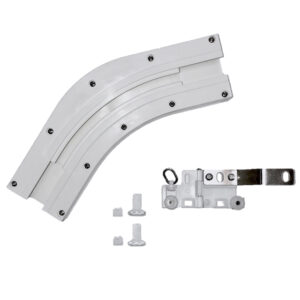
135º angle with articulated runner
17,00€
Select options
This product has multiple variants. The options may be chosen on the product page